
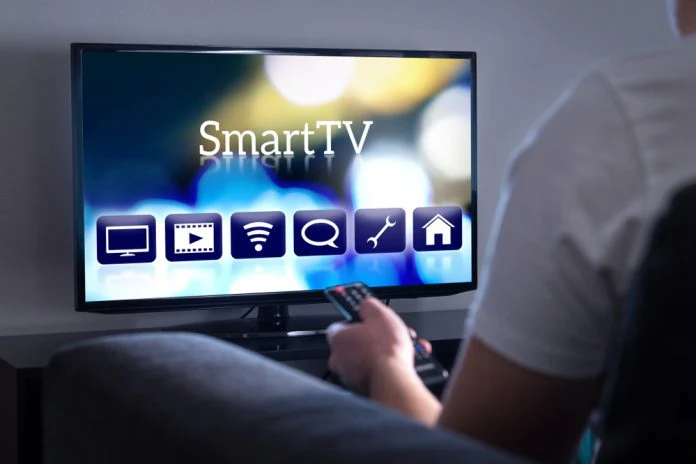

Setting up a 75 inch smart TV such as the Xiaomi QLED X Pro 75 requires proper planning, correct installation, and optimized picture and sound settings. This beginner friendly guide covers purchase considerations, wall mounting tips, connectivity setup, and performance adjustments for the best viewing experience.
A 75 inch smart TV is a large format display designed for immersive home entertainment. Models like the Xiaomi QLED X Pro 75 use QLED panel technology with 4K resolution, smart operating systems, and support for popular streaming apps. While buying a large screen TV is exciting, correct placement and setup directly impact picture quality, sound performance, and long term durability.
Choosing the Right Space and Viewing Distance
Before installation, evaluate room size and seating distance. For a 75 inch 4K smart TV, the recommended viewing distance typically ranges between 8 to 12 feet. Sitting too close may cause eye strain, while sitting too far reduces the immersive effect.
Measure wall width and ensure at least a few inches of clearance on both sides. Large QLED TVs need stable surfaces and proper ventilation. Avoid placing the TV directly opposite windows to minimize glare. If your living room has strong natural light, consider curtains or blinds.
Also check power socket placement. Extension cables should not hang loosely behind the TV. Plan wiring before mounting to maintain a clean look.
Wall Mounting vs Table Stand Installation
Most 75 inch smart TVs support both wall mounting and stand placement. Wall mounting is ideal for saving space and achieving a cinematic look. Ensure the wall can support the weight of the television. Use a VESA compatible wall mount bracket recommended for large screens.
If mounting on a concrete wall, use heavy duty anchors. For gypsum or drywall, additional reinforcement may be necessary. Professional installation is advisable for beginners to avoid damage or safety risks.
If using the table stand, ensure the TV unit is wide enough and stable. A 75 inch TV typically requires a sturdy console that can handle its weight and width. Keep the unit level to avoid tilt.
Initial Power On and Software Setup
After physical installation, connect the power cable and switch on the TV. During first boot, the smart TV will prompt you to select language, region, and network connection.
Connect to a stable WiFi network or use a wired Ethernet cable for better streaming stability. Wired connections are recommended if your router is close to the TV.
Sign in using your Google account or the required operating system account to access app stores and streaming platforms. Install essential apps such as Netflix, Prime Video, YouTube, and regional OTT services.
Check for software updates immediately after setup. Manufacturers often release firmware updates that improve performance, fix bugs, and enhance compatibility.
Optimizing Picture Settings for QLED Display
QLED technology uses quantum dot layers to enhance brightness and color accuracy. However, default picture settings may not always be ideal.
Navigate to picture settings and select a suitable mode. For movies, choose cinema or movie mode for balanced color tones. For sports, a vivid or sports mode may enhance brightness and motion clarity.
Adjust brightness and contrast based on room lighting. In darker rooms, lower brightness to reduce eye strain. Enable HDR settings if watching supported 4K HDR content.
Turn off unnecessary motion smoothing if you prefer a more natural cinematic feel. Advanced users can fine tune white balance and color temperature for improved accuracy.
Setting Up Audio for Better Sound Experience
Large screen TVs often have decent built in speakers, but room acoustics affect sound quality. Place the TV at ear level when seated for balanced audio projection.
In audio settings, choose standard or cinema sound mode depending on content type. If available, enable Dolby Audio or DTS support for immersive sound.
For a more powerful setup, consider connecting a soundbar or home theater system via HDMI ARC or optical cable. HDMI ARC simplifies control since volume can be adjusted using the TV remote.
Ensure cables are properly secured to prevent signal loss.
Connecting External Devices and Gaming Consoles
Modern 75 inch smart TVs include multiple HDMI ports, USB ports, and Bluetooth support. Connect set top boxes, gaming consoles, or streaming devices using high quality HDMI cables.
If you own a gaming console, use the HDMI port that supports higher refresh rates or low latency modes. Enable game mode in TV settings to reduce input lag.
Bluetooth connectivity allows pairing with wireless headphones or speakers. This is useful for late night viewing without disturbing others.
Organize cables using clips or conduits to maintain a tidy appearance.
Maintaining and Protecting Your Investment
A 75 inch smart TV is a significant investment. Use a surge protector to guard against voltage fluctuations. Clean the screen gently using a microfiber cloth. Avoid spraying liquid directly onto the display.
Keep ventilation areas clear to prevent overheating. Do not block rear air vents with decorative panels.
Regularly update software and uninstall unused apps to maintain smooth performance.
Takeaways
• Measure viewing distance and wall space before installation
• Use professional mounting for safety with large screen TVs
• Optimize picture and sound settings after initial setup
• Protect your TV with surge protection and proper maintenance
FAQs
Q1. What is the ideal viewing distance for a 75 inch 4K TV
The ideal distance is approximately 8 to 12 feet for comfortable and immersive viewing.
Q2. Is wall mounting better than using a stand
Wall mounting saves space and provides a clean look, but both options work if installed securely.
Q3. Do I need a soundbar with a 75 inch smart TV
Built in speakers are sufficient for casual viewing, but a soundbar improves clarity and bass significantly.
Q4. How often should I update my smart TV software
Check for updates every few months or enable automatic updates to ensure optimal performance.