

Setting up a home WiFi mesh system in a smaller town can significantly improve coverage and reliability, especially in houses with thick walls or multi floor layouts. This guide explains the complete process, required hardware and practical configuration steps to help you get strong and stable connectivity throughout your home.
A WiFi mesh network uses multiple interconnected nodes to extend coverage without relying on a single router. In smaller towns, where building layouts often vary and internet speeds may fluctuate, a mesh setup reduces dead zones and provides a consistent signal across rooms and floors. This article outlines a clear setup approach, key placement techniques, and common issues to avoid during installation.
Choosing the right mesh system and preparing the setup
Before installation, select a mesh system that matches your home size and internet speed. Most mesh systems provide two or three nodes, with compatibility for additional units if needed. Choose dual band or tri band mesh units based on coverage requirements. Tri band systems offer better performance for large homes where multiple devices operate simultaneously.
Check your existing internet plan to confirm the maximum speed your service provider supports. In many smaller towns, broadband speeds vary by locality, so matching the mesh system to the available speed avoids unnecessary overspending. Ensure your modem or fiber ONT from the provider is functioning correctly, as the mesh router connects directly to it. Keep Ethernet cables and power outlets accessible near the primary node location.
Setting up the main node and connecting to your modem
The main node acts as the primary router. Place it close to the modem or fiber ONT and ensure it has clear line of sight within the room. Connect the node to the modem using the provided Ethernet cable. Turn off your modem for ten seconds, restart it and then power on the mesh node.
Most mesh systems use mobile apps for setup. Download the app, create an account if required and follow on screen instructions. The app detects the primary node and guides you through naming your WiFi network and setting a secure password. Use a name that is easy to identify and avoid weak password combinations. After configuration, wait for the node’s indicator light to show a stable connection before proceeding to the next step.
Placing additional nodes and building full home coverage
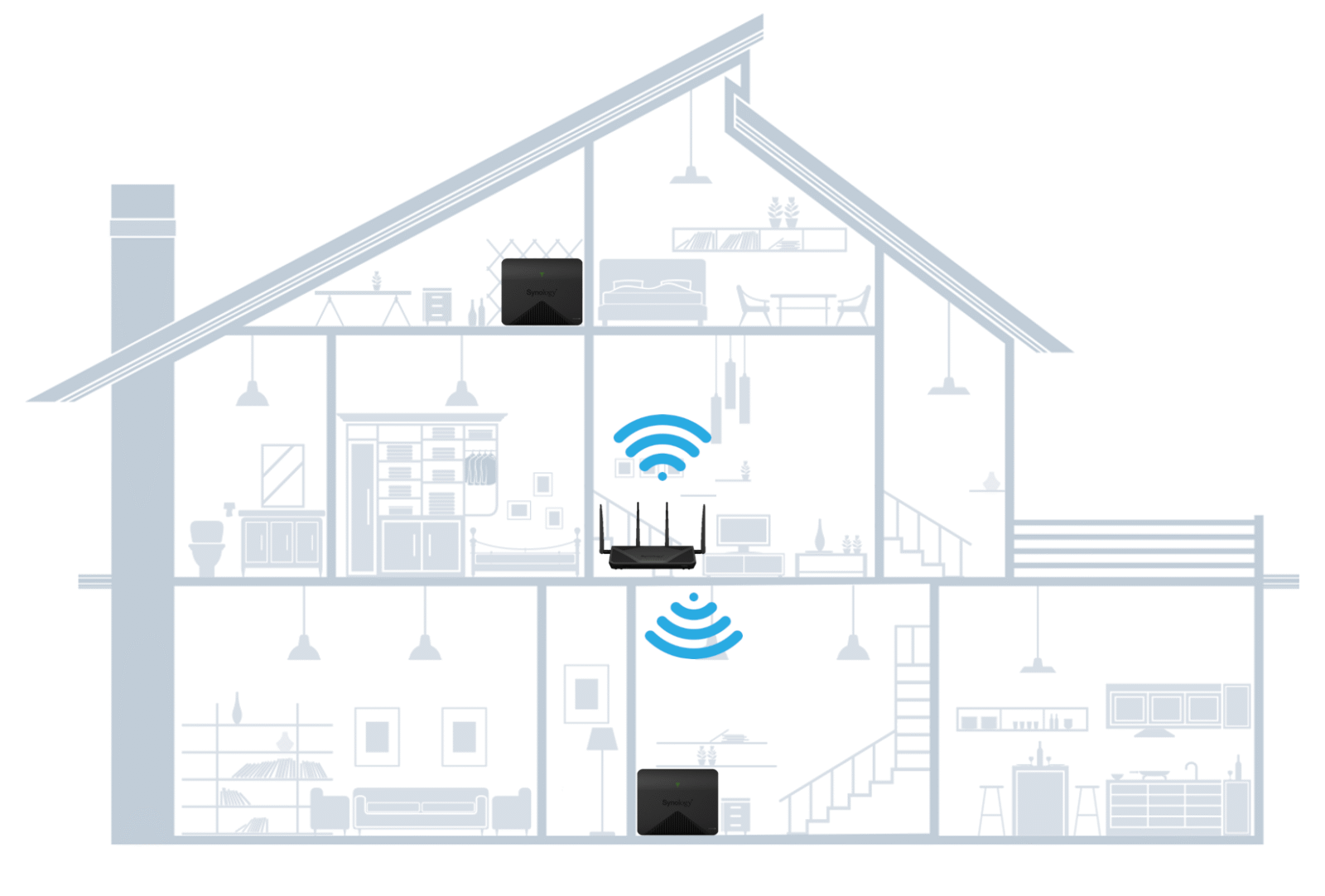
The secondary nodes extend WiFi coverage across rooms and floors. Place each node halfway between the main node and the target area that needs better signal. Avoid positioning nodes near metal objects, closed cabinets or thick reinforced walls, as these reduce signal strength. In multi level homes, placing a node on the staircase landing or open areas improves vertical coverage.
Power on each node and let the app detect it automatically. The system links each node wirelessly with the main unit. If any node shows weak connection, shift it slightly closer until the signal stabilises. Mesh systems adjust routing paths on their own, so once proper placement is done, the network optimises itself with minimal user input.
Customising network settings for stronger and stable performance
After initial setup, the app provides options to fine tune performance. Enable automatic firmware updates to ensure the mesh system runs the latest features and security patches. Use parental control settings if needed and create a guest network to separate visitor devices from your main setup.
If your home has many connected devices such as smart TVs, cameras or speakers, ensure the mesh system supports enough simultaneous connections. Some systems offer device prioritisation, allowing you to give higher priority to laptops or work devices. In smaller town environments where broadband speeds can vary, prioritising critical devices ensures smoother performance during peak usage hours.
Troubleshooting common mesh issues in smaller towns
If internet drops occur frequently, first check if the issue is from the service provider. Local outages are more common in smaller towns. Restarting the modem often resolves temporary sync problems.
If specific rooms still face weak signal, consider adding an extra node. Mesh systems are expandable, and one additional node usually fills remaining blind spots. Make sure nodes are not too close, as this can reduce efficiency. Also check for interference from old wireless devices or cordless phones operating on similar frequencies.
Takeaways
Place nodes strategically to ensure strong wireless backhaul
Use the mesh app to monitor and optimise device connections
Restart modem and node system if connectivity irregularities appear
Add extra nodes for large or uniquely structured homes
FAQ
Do I need a high speed plan for a mesh system to work well?
No. A mesh system improves coverage, not speed. It works well even with moderate broadband plans.
Can I mix different brands of mesh nodes?
No. Mesh nodes must belong to the same brand and model family to function properly.
Will a mesh system work in older houses with thick walls?
Yes, but node placement must be planned carefully. Sometimes an additional node is required.
Is wiring needed for installing a mesh system?
Only the primary node requires a wired connection to the modem. Additional nodes operate wirelessly.