
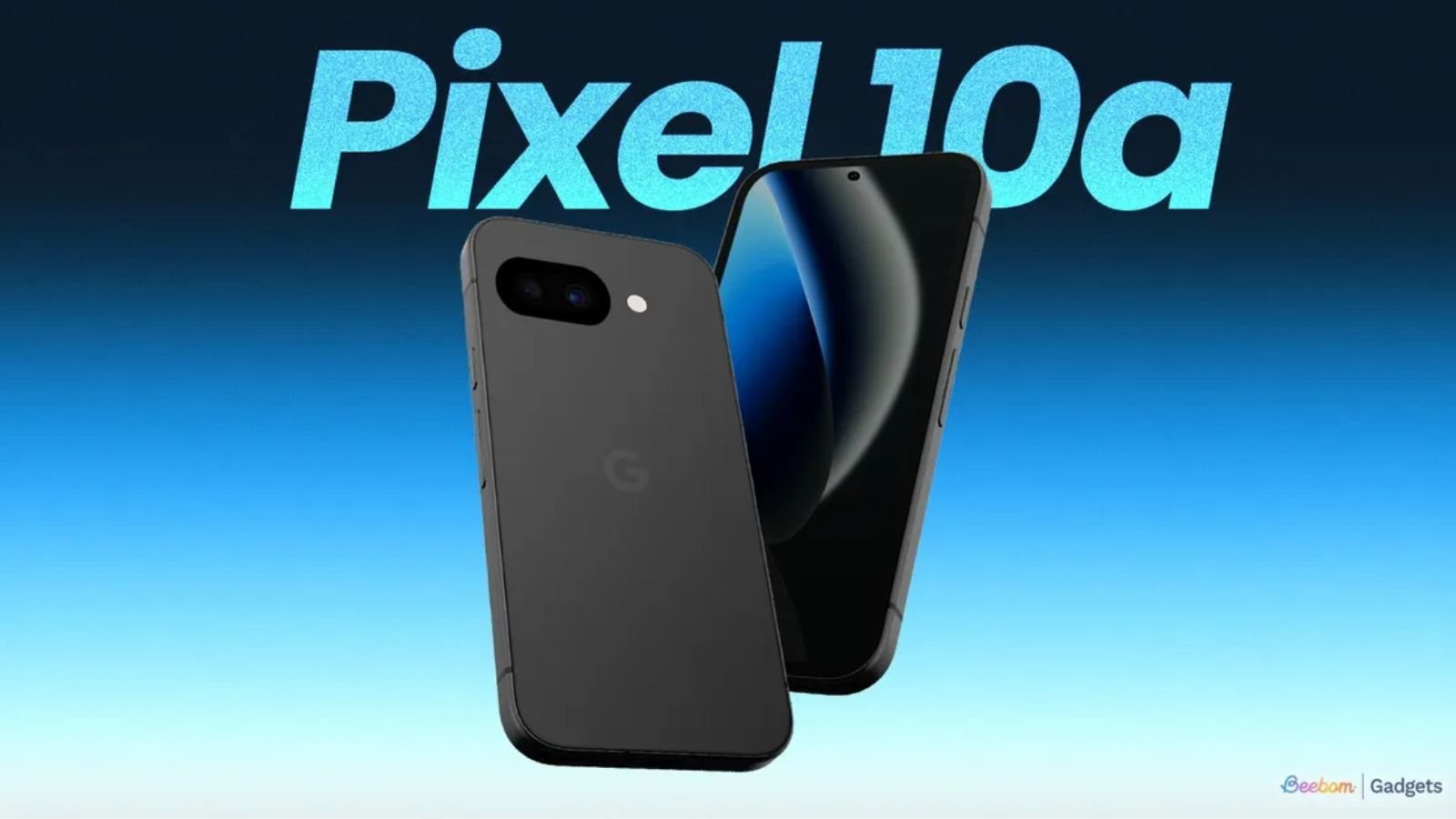

The Google Pixel 10a has officially launched in India, bringing the latest version of Android, upgraded AI features and improved camera capabilities to the mid range segment. Here is a practical, step by step guide to setting up and using its new features from day one.
The Google Pixel 10a India launch marks the arrival of Google’s newest A series smartphone designed for users who want flagship level software features at a relatively accessible price point. As with previous Pixel A devices, the focus is on clean Android, long term updates, AI powered photography and smart assistant tools. If you have purchased the device on launch day, setting it up correctly ensures you unlock its full potential from the start.
Unboxing and Initial Setup Process
When you power on the Google Pixel 10a for the first time, the setup wizard walks you through language selection, Wi Fi connection and Google account sign in. Use a stable Wi Fi network during this process to ensure the device downloads the latest security patch and system updates.
If you are upgrading from an older Android phone, use the built in data transfer option. Connect both devices using a USB C cable or wireless transfer to copy apps, contacts, call logs and media. For iPhone users, Google provides an option to transfer data including photos and messages using a cable based method.
Set up fingerprint unlock and face unlock if supported. Biometric authentication improves security and speeds up daily usage. Choose a strong screen lock PIN as backup.
Exploring the Latest Android Version and Pixel UI
The Google Pixel 10a ships with the latest stable Android version optimized for Pixel devices. One of the key strengths of Pixel phones is the clean Pixel UI, free from heavy third party skins.
Start by customizing the home screen. Long press on the home screen to adjust wallpaper, add widgets and configure At a Glance. The At a Glance widget displays weather, calendar events, flight updates and reminders without opening apps.
Navigate to Settings and review privacy controls. Android now provides a privacy dashboard where you can see which apps accessed location, camera or microphone recently. Disable permissions that are not essential.
Enable automatic updates under Security and Privacy. Pixel devices are known for timely security patches, and keeping the phone updated ensures optimal performance and protection.
Using AI Powered Features and Google Assistant
The Google Pixel 10a continues Google’s focus on AI powered features. Features such as call screening, voice typing and smart replies enhance productivity.
Activate Google Assistant by going to Settings and searching for Assistant. You can enable voice activation and train the assistant to recognize your voice. This allows hands free commands for calling, messaging, setting reminders and controlling smart home devices.
Explore AI based voice typing in messaging apps. The on device speech recognition allows faster and more accurate dictation compared to traditional typing. This is particularly useful for users who send long emails or messages frequently.
If available on the device, try AI photo editing tools within Google Photos. Tools such as background blur, object removal or automatic enhancements help improve photos without third party apps.
Camera Setup and Photography Tips
The Pixel A series is widely recognized for strong computational photography. Open the Camera app and explore modes such as Night Sight, Portrait and HDR.
Enable HDR by default to balance highlights and shadows in daylight photos. For low light photography, use Night Sight and keep the phone steady for a few seconds to allow the software to capture multiple exposures.
Portrait mode uses software based depth mapping to create background blur. Ensure good lighting and maintain distance from the subject for better results.
Check video settings before recording. Adjust resolution and frame rate based on your needs. Higher resolution videos consume more storage, so plan accordingly if you record frequently.
Battery Optimization and Performance Settings
To get the best battery life from the Google Pixel 10a, review battery usage under Settings. Identify apps that consume excessive power and restrict background activity if necessary.
Enable adaptive battery. This feature uses machine learning to prioritize battery for frequently used apps and limit rarely used ones.
Activate adaptive brightness so the display adjusts automatically based on ambient light. This reduces manual adjustment and saves power.
If the device supports fast charging, use the recommended charger to reduce charging time. Avoid using incompatible chargers that may affect battery health over time.
Security, Backup and Essential Apps
Security is a strong point for Pixel devices. Turn on Google Play Protect to scan apps for threats. Ensure Find My Device is enabled in case the phone is lost.
Set up automatic backup under System and Backup. This ensures that contacts, app data, SMS and device settings are backed up to your Google account.
Install essential apps from the Play Store based on your usage. Avoid downloading unnecessary apps on day one to maintain performance and storage efficiency.
Review storage usage under Settings to ensure you have enough space for photos, videos and updates.
Takeaways
• Complete system updates and biometric setup immediately after unboxing
• Explore AI features like voice typing and smart photography tools early
• Optimize battery using adaptive battery and brightness settings
• Enable backup and security features to protect data from day one
FAQ
Q1: Does the Google Pixel 10a support the latest Android updates?
Yes, Pixel devices typically receive timely Android version updates and regular security patches directly from Google.
Q2: How can I transfer data from my old phone to the Pixel 10a?
You can use the built in data transfer tool during setup to copy apps, contacts and media using a cable or wireless option.
Q3: What makes the Pixel 10a camera special?
The device relies heavily on computational photography, including HDR processing and Night Sight, to deliver high quality photos even in challenging lighting conditions.
Q4: How do I improve battery life on launch day?
Enable adaptive battery, limit background app activity and keep brightness settings optimized to extend daily usage.