
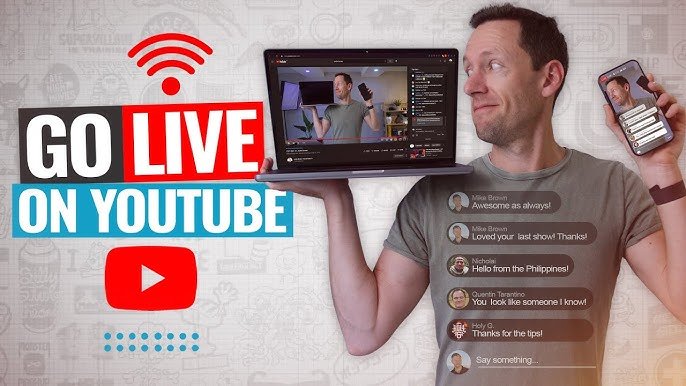

Setting up a free YouTube live stream is one of the fastest ways to broadcast major events like an AI Expo to a wide audience. This guide explains the tools you need, best streaming settings and practical monetisation tips that work.
If you are planning to cover a major event such as a technology summit or AI Expo, knowing how to set up a free YouTube live stream is essential. YouTube allows creators, media teams and businesses to go live without paying platform fees, provided eligibility requirements are met. With the right setup and configuration, you can deliver stable video quality and even generate revenue during the broadcast.
Check Eligibility Before You Go Live
Before setting up your YouTube live stream, ensure your channel meets the platform’s live streaming requirements. Your channel must be verified using a phone number and should not have live streaming restrictions in the past 90 days. For mobile live streaming, YouTube typically requires at least 50 subscribers. Desktop streaming through a webcam does not require a minimum subscriber count, but verification is mandatory.
Enable live streaming inside YouTube Studio by navigating to the Create section and selecting Go Live. First time activation may take up to 24 hours, so complete this step well before the event day.
If you are streaming a large public event like an AI Expo, confirm you have the right to broadcast the content. Avoid copyright violations related to music, presentations or third party video clips.
Choose the Right Tools for Free Live Streaming
You can set up a YouTube live stream in three primary ways: directly via webcam, through mobile streaming, or using encoder software.
For professional event coverage, encoder software such as OBS Studio is widely used and free. OBS allows you to connect DSLR cameras, microphones and capture cards. It also lets you add overlays, lower thirds and logos.
Basic setup includes a laptop or desktop with at least 8GB RAM, a stable internet connection, an external microphone and optionally a tripod mounted camera. Audio clarity is more important than video quality, so invest in a lapel or shotgun microphone if covering stage speakers at an AI Expo.
Internet speed matters. For 1080p streaming, upload speed should be at least 6 Mbps to 9 Mbps. Always test your connection at the venue in advance.
Best YouTube Live Stream Settings for Major Events
Optimising YouTube live stream settings ensures stable output. In OBS or similar software, use the following configuration for most events:
Set resolution to 1920 by 1080 for Full HD if your system can handle it. If bandwidth is limited, 1280 by 720 is safer.
Keep frame rate at 30 fps for conferences and panel discussions. 60 fps is not necessary unless you are streaming fast motion content.
Bitrate for 1080p should be between 4500 to 6000 kbps. For 720p, 2500 to 4000 kbps works well.
Use the H.264 encoder, which is compatible and stable for YouTube. Enable hardware encoding if your system supports it to reduce CPU load.
Inside YouTube Studio, select public, unlisted or private visibility. Schedule the live stream in advance to generate a shareable link. Add a clear title such as AI Expo 2026 Live Coverage and include relevant keywords in the description.
How to Structure a Professional Event Live Stream
Major events require planning beyond technical setup. Arrive early to test audio levels and camera framing. Frame the stage centrally and avoid strong backlighting.
Create a simple run of show. Begin with a two minute pre stream screen announcing the session start time. This builds anticipation and allows viewers to join before the keynote begins.
During the live broadcast, monitor the YouTube Live Control Room for dropped frames or stream health alerts. Assign one team member to moderate chat, remove spam and highlight audience questions.
If streaming from a Tier 2 city or smaller venue, ensure power backup. A simple UPS for your router and laptop can prevent interruptions.
Monetisation Tips for YouTube Live Streams
A free YouTube live stream can generate revenue if your channel is part of the YouTube Partner Program. To qualify, you must meet subscriber and watch hour requirements set by YouTube.
Monetisation options include live chat Super Chats, channel memberships and in stream ads. Enable monetisation in YouTube Studio before going live. Mid roll ads can be inserted during natural breaks such as between AI Expo sessions.
Brand sponsorship is another practical route. Local startups or tech training institutes may sponsor overlays or mention segments during the stream.
After the live stream ends, keep the recording public. Optimise the title, description and tags for search traffic. Long term replay views often generate more revenue than live viewers.
Common Mistakes to Avoid During Event Streaming
Avoid relying solely on venue WiFi without testing. Public networks can be unstable during high footfall events.
Do not stream at maximum bitrate if your internet speed fluctuates. Dropped frames damage viewer retention.
Keep your thumbnail professional. A blurred stage image reduces click through rate.
Most importantly, rehearse your setup at least once before the actual event. Technical surprises during a live AI Expo broadcast can harm credibility.
Takeaways
Verify your YouTube channel and enable live streaming early.
Use free encoder software like OBS for professional control.
Optimise resolution, bitrate and frame rate for stable streaming.
Monetise through ads, Super Chats and sponsorships when eligible.
FAQs
Q1. Can I live stream on YouTube for free?
Yes, YouTube does not charge platform fees for live streaming, but you must meet verification requirements.
Q2. What internet speed is required for 1080p streaming?
An upload speed of at least 6 Mbps to 9 Mbps is recommended for stable Full HD streaming.
Q3. Do I need special software to stream major events?
You can stream directly from a webcam, but encoder software like OBS provides better control and quality.
Q4. Can I earn money from a YouTube live stream?
Yes, if your channel is eligible for monetisation through the YouTube Partner Program.