
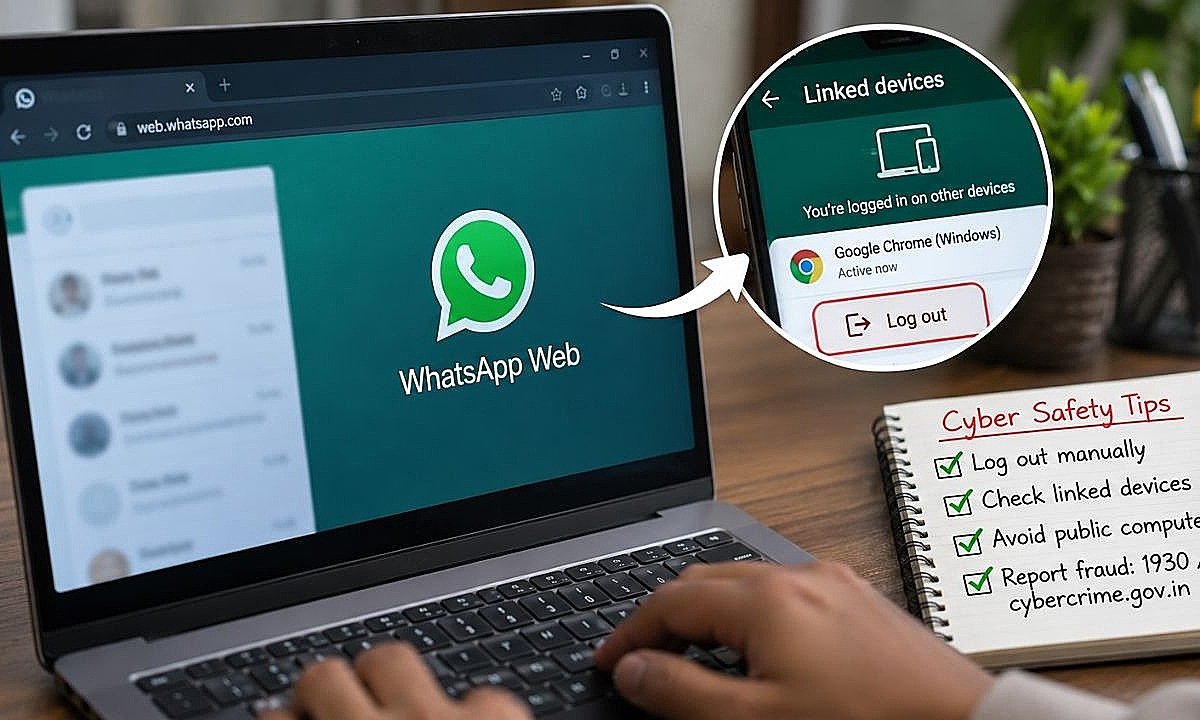

India’s cybercrime authorities have warned users about the risks of leaving WhatsApp Web logged in on shared computers. Checking linked devices, logging out after every session and enabling additional security features can help protect private conversations from unauthorised access.
Why Is the Government Warning WhatsApp Web Users?
WhatsApp Web makes it convenient to access chats from a laptop or desktop. However, an active session can become a security risk if someone else gains access to the computer or its browser.
The Indian Cyber Crime Coordination Centre (I4C), through its National Cybercrime Threat Analytics Unit, has warned that an authenticated WhatsApp Web session may be misused to access a user’s account. Someone controlling that session could potentially read messages, view contacts and group conversations, and send messages while pretending to be the account holder.
The advisory recommends avoiding the exchange of government, organisational, financial and other confidential information through WhatsApp Web on computers, particularly those that are shared or accessible to other people.
The warning is relevant to office employees, students, business owners, freelancers and anyone who regularly opens WhatsApp on a computer. The Indian Express+2
How Does WhatsApp Web Account Access Work?
WhatsApp Web connects a computer browser to an account registered on a primary phone. Users generally scan a QR code or follow the available device-linking process to establish the connection.
Once linked, the computer becomes an authorised device. It can access WhatsApp conversations without requiring the phone to remain continuously connected to the internet.
This feature is useful for people who type frequently, manage customer messages or share documents through WhatsApp. However, it also means that an active session can remain accessible after the user finishes working.
Closing a browser tab or shutting the computer does not necessarily log out of WhatsApp Web. If the session remains authenticated, another person with access to that computer may be able to reopen it.
End-to-end encryption protects messages while they travel between devices. But it cannot protect conversations from someone who has access to an already authorised and unlocked device. This is why checking linked devices and logging out manually are important security habits. HT Explainers+2
How to Check Linked Devices on WhatsApp
The first step in protecting your account is checking which computers, browsers and other devices are connected to it.
You can review the list directly from your primary smartphone.
On Android
- Open WhatsApp on your Android phone.
- Tap the three-dot menu in the top-right corner.
- Select Linked devices.
- Review the list of connected devices.
- Tap any device you do not recognise or no longer use.
- Select Log out to disconnect it.
On iPhone
- Open WhatsApp on your iPhone.
- Tap Settings in the bottom navigation.
- Select Linked Devices.
- Review all connected computers and devices.
- Select a device you no longer use or do not recognise.
- Tap Log Out.
The list may show the device type, browser or operating system and recent activity information. Check it regularly rather than waiting until you notice something suspicious.
If you find an unfamiliar device, log it out immediately. You do not need physical access to that computer to disconnect it from your account. WhatsApp Help Center+1
How to Log Out of WhatsApp Web After Every Session
Manually logging out is particularly important when using an office computer, borrowed laptop or any device that other people can access.
Follow these steps:
- Open WhatsApp Web in your browser.
- Click the menu icon near your profile or chat list.
- Select Log out.
- Wait for the login screen to appear.
- Close the browser after confirming that the session has ended.
The menu layout may vary slightly depending on the browser and WhatsApp Web version.
If you have already left the computer, you can log out remotely through your phone:
- Open WhatsApp on your primary smartphone.
- Go to Linked Devices.
- Select the computer or browser session.
- Tap Log Out.
This is useful if you forgot to disconnect your account before leaving the office or another shared location.
WhatsApp also states that linked devices are automatically disconnected after 30 days of inactivity. However, users should not depend on automatic disconnection as a substitute for manually logging out after use. WhatsApp Help Center+1
How to Enable Two-Step Verification on WhatsApp
Two-step verification adds another layer of protection to your WhatsApp account. It helps prevent someone from registering your phone number on another device without completing the additional security check.
To enable it:
- Open WhatsApp on your primary phone.
- Go to Settings on iPhone or the three-dot menu on Android.
- Select Account.
- Tap Two-step verification.
- Follow the on-screen instructions to activate the feature.
- Set up the additional authentication details requested by WhatsApp.
- Add and verify an email address if the option is available.
WhatsApp has also announced stronger two-step verification using longer passwords, including letters, numbers and special characters, as part of its account security improvements. The options displayed may depend on the version and rollout available to your account.
Choose credentials that are difficult to guess. Never share your verification details or one-time passwords with another person, even if they claim to be a WhatsApp employee.
One important distinction: two-step verification helps protect account registration and takeover attempts. It does not automatically terminate an existing WhatsApp Web session. You must still check and remove unfamiliar linked devices separately. WhatsApp Help Center+1
WhatsApp Passkeys: Another Way to Protect Your Account
WhatsApp also supports passkeys, which allow users to verify their identity through their phone’s security system.
Depending on the device, authentication can use:
- Fingerprint recognition.
- Face recognition.
- The phone’s screen-lock PIN or password.
To check the feature, open WhatsApp and navigate to Settings > Account > Passkeys. Follow the instructions shown on your device to create or manage a passkey.
A passkey can make account verification more convenient while reducing dependence on SMS verification codes. WhatsApp announced additional passkey improvements in August 2026, including support for multiple passkeys for users who use both Android and iOS devices.
Passkeys and two-step verification serve related but different purposes. Neither should replace regular linked-device checks or safe computer practices. Facebook+1
WhatsApp Web Safety: Mistakes Users Should Avoid
Many account security problems begin with everyday habits rather than sophisticated cyberattacks. These precautions can reduce the chances of unauthorised access.
1. Avoid public computers
Do not open WhatsApp Web on computers in cyber cafes, public libraries, hotel business centres or unfamiliar kiosks. These devices may be accessible to other users and may not have adequate security controls.
2. Never scan an unknown QR code
Scammers may ask users to scan a QR code or enter a device-linking code under the pretext of offering a reward, job opportunity or account verification.
Only link a device when you have personally initiated the process and can see the computer being connected.
3. Do not download suspicious files
Unexpected attachments can contain malware or exploit weaknesses in outdated software. Be especially careful with files received from unknown contacts or messages that create a sense of urgency.
If a known contact sends an unexpected file, confirm with them before opening it.
4. Avoid unofficial WhatsApp applications
Use the official WhatsApp application and supported linking methods. Third-party websites and modified WhatsApp applications may expose account information and create privacy risks.
5. Keep your browser and computer updated
Install operating system and browser security updates. Remove unnecessary browser extensions and avoid cracked software or downloads from untrusted websites.
6. Do not rely only on Incognito mode
Private or Incognito browsing can reduce the amount of browsing information stored locally. It does not protect against malware, malicious browser extensions or someone who has access to the computer while the session is active.
If you use a private window, manually log out before closing it. WhatsApp Help Center+2
What to Do If Someone Has Accessed Your WhatsApp Account
If you notice unfamiliar linked devices, messages you did not send or unusual activity, act quickly.
First, open WhatsApp on your primary phone and remove every linked device you do not recognise. If you are unsure which session is legitimate, log out of all linked devices and reconnect only the devices you personally use.
Next, secure your phone and WhatsApp account. Enable two-step verification, review your passkey settings and never share verification codes with anyone.
If the computer may be infected, disconnect it from the internet and scan it using updated security software. Update its operating system and browser before using WhatsApp Web again.
Inform your contacts if suspicious messages have been sent from your account. Ask them not to open unexpected attachments, click suspicious links or transfer money in response to unusual requests.
If you have suffered financial cyber fraud, report it immediately through India’s national cybercrime helpline at 1930 or the official reporting portal, cybercrime.gov.in.
Quick reporting is important because it may help authorities take action on reported financial transactions. Hyderabad Mail+1
Should You Use WhatsApp Web for Office and Financial Work?
WhatsApp Web can be useful for routine communication, but convenience should not override confidentiality.
The I4C advisory specifically recommends avoiding the exchange of government, organisational, financial and other sensitive information through WhatsApp Web sessions on computers.
For example, employees handling customer records, financial documents, internal business information or confidential files should use their organisation’s approved communication and document-sharing systems.
Businesses should also establish basic security practices for employees who use WhatsApp on workplace computers. These can include avoiding shared browser profiles, logging out after each session, updating devices and regularly reviewing linked accounts.
For personal users, the practical rule is straightforward: use WhatsApp Web only on a computer you trust, keep sensitive conversations away from shared devices and disconnect the session when finished.
Key Takeaways
- Check Settings > Linked Devices regularly and remove computers or browsers you do not recognise.
- Always log out manually after using WhatsApp Web, especially on office, borrowed or shared computers.
- Enable two-step verification and consider setting up a passkey for additional account protection.
- Avoid suspicious QR codes, unknown downloads and sensitive work on untrusted computers. Report financial cyber fraud through 1930 or cybercrime.gov.in.
FAQs
1. How can I check whether someone is using my WhatsApp Web account?
Open WhatsApp on your phone, go to Settings or the three-dot menu and select Linked Devices. Review the connected devices and log out of any session you do not recognise.
2. Does closing the WhatsApp Web tab log out automatically?
No. Closing the browser tab or window does not necessarily end an authenticated session. You should manually select Log Out or disconnect the device through Linked Devices on your phone.
3. Is WhatsApp Web safe to use on an office computer?
It can be used on a trusted, secured computer with appropriate precautions. However, the government advises users to avoid exchanging sensitive official, financial or confidential information through WhatsApp Web on computers.
4. What should I do if I find an unknown device linked to my WhatsApp?
Select the unfamiliar device under Linked Devices and tap Log Out. Then enable two-step verification, review your account security settings and check for unusual messages or activity.